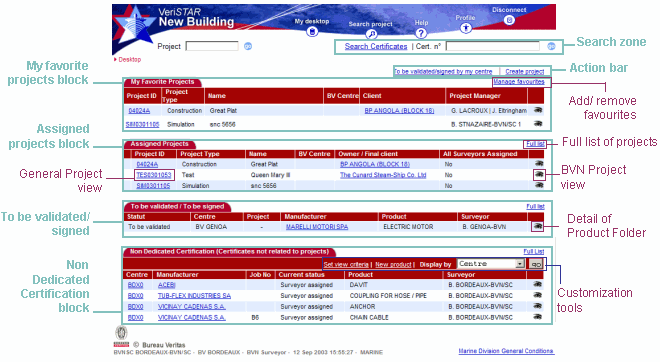
When connecting to VeriSTAR New Building, the Desktop is the first page you visit. It is very important to understand the structure and use of this page, to start a relevant navigation and work.
The purpose of the desktop is to
personalize your working environment;
provide you with a list of shortcuts to enter projects, targeted according to your profile;
let you consult what you have to do within the application.
It contains:
an action bar (Create project, To be validated/ signed by my centre),
four blocks: Favorite Projects - Assigned Projects - To be validated/ To be signed - Non dedicated Certification.
Content and navigation
My Favorite Projects block: presents a list of projects in which you are interested, and that you have personally indicated as favourites, in order to get a direct access to their details.
|
|
When you connect to VeriSTAR NB for the first time, your Favorite Projects block is empty: you have to customize it yourself, by adding projects to it. To add projects to your Favorite Projects block, see Projects list. |
The information displayed in this block is read-only:
Project ID: project identifier (registered number or system-assigned)
Project Type:
Drawing (drawing review for equipments)
Product Design Review (PDR): design review of a dedicated or non dedicated product.
Ship in Service (NS)
BV Mode 1 (Alternative Inspection Scheme)
Product
Certification
(PRC)
Name: commercial name of project (as opposed to the VeriSTAR NB project ID)
BV Centre: centre in charge of project.
Client: name of client company.
Project
Manager: user name of Project Manager (Leader) assigned to the project.
Below is the list actions you can perform from your BVN Favorite Projects block:
 (project
ID): go to the General project view (Project
data tab);
(project
ID): go to the General project view (Project
data tab);
 : go to the
BVN project view (Products tab);
: go to the
BVN project view (Products tab);
Manage favourites: remove projects from your list of favourites
Assigned Projects block: contains a list of projects you have been assigned. The projects are automatically added and removed from the list, according to the workflow. Projects are displayed if:
you have at least one product certification to carry out within this project;
your centre is in charge
of certification, but no surveyor has yet been assigned.
The list displays the same information as the Favorite Projects block (same table and same fields) except the Project Manager (Leader) column is replaced by the "All Surveyors Assigned" column (yes or no type).
Sorting:
The list is sorted by descending assignation date: (from the most recent
project to the least). Only the 10 most recent projects are displayed
in the list; use the "Full list" link to consult the whole list
of assigned projects.
The "New" icon displayed on a project's line indicates there
is a new assignment within this project.
Below is the list of actions you can perform from your BVN Assigned Projects
block:
(project
ID): go to the General project view (Project
data tab);
: go to the
BVN project view (Products tab);
 : consult
the whole list of assigned projects (same structure as the assigned projects
tab).
: consult
the whole list of assigned projects (same structure as the assigned projects
tab).
To
be validated/ To be signed block: contains a list of certificates
you have been designated to validate or sign.
The certificates are automatically added and removed from the list,
according to the workflow:
: consult
the whole list of certificates to be validated or signed.
: open the
product folder (Products tab);
Non Dedicated Certification (NDC) block (Certificates not linked to projects): this block is relating to the certification of Stock items (Shelf items) for which the end-use is not identified (no BV register number, no Project number).The block holds a list of products, default-sorted by centre:
Centre: centre in charge of certification + link to popup window (displaying the BV centre contact details);
Manufacturer:
manufacturer of product. If manufacturer is not registered in the BV Company
database, the  indicator is displayed. Click the manufacturer's
name to open the contact details popup window.
indicator is displayed. Click the manufacturer's
name to open the contact details popup window.
Job n°: mission number
Current status: status of certification for the product (Centre assigned, Surveyor assigned...)
Product: name of generic product.
Surveyor:
surveyor in charge of certification.
|
You may customize the NDC block's appearance, according to your needs |
Change the block display:
When getting to your desktop, products are sorted by
Centre. The Centre view is the default setting but you can also choose
a Manufacturer view, a Customer view or a Certificate view. To do so,
select a view in the drop-down menu.
According to the display mode, the information held in the table is not
exactly the same:
|
Display by Manufacturer |
Display by Purchaser |
Display by Certificate |
|
- Manufacturer - Product - Job No - Purchaser (+ link to popup) |
- Purchaser (+ link to popup) - BV Centre Identification/Job No - Product - Manufacturer |
- Certificate type - Certificate No - Date: of certificate, according to the status - Product - Manufacturer |
|
(If manufacturer is not registered in the BV Company
database, the |
||
|
|
Certificate No: several
certificates may be issued for one same product. The NDC block displays
one line per issued certificate. Cancelled certificates are displayed
with their number followed by the mention "Cancelled" in brackets. |
Personalize
your NDC block:
Click "Set view criteria"
to display the "Add criteria" screen, where you can save filter
criteria for non dedicated certifications. Those criteria will be saved
in the database for every user as desktop personalization criteria. For
more information, see Customize
your NDC block.
Below is the list of actions you can perform from your BVN NDC block:
: go to whole
list of NDC projects (same structure as the NDC projects block).
Set view criteria: personalize the NDC block by choosing the items you wish to display;
New product: go to Product Folder creation page;
: enter the
Product Folder (Product tab).
Action bar
To be validated/ signed by my centre: access to the full list of certificates your centre has been designated to validate or sign.
Create project: project creation form (project types: Product Certification, Simulation)


