 Help in the VeriSTAR
NB toolbar: the help window opens, displaying the information about the
current VNB screen:
Help in the VeriSTAR
NB toolbar: the help window opens, displaying the information about the
current VNB screen:VeriSTAR NB online help is a context-sensitive help: each application window is linked to a particular help heading.
To display the help heading corresponding to the page you are viewing,
click Help in the VeriSTAR
NB toolbar: the help window opens, displaying the information about the
current VNB screen:

Click the "Show" link to display the table of content, as in the image below:
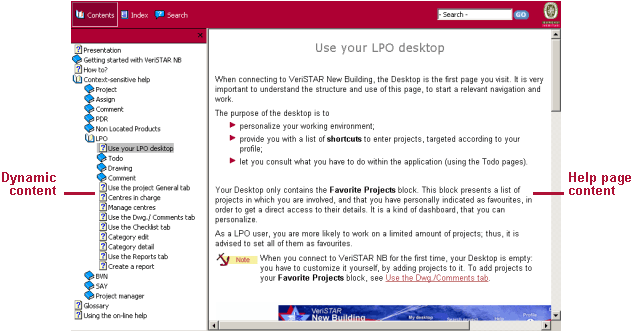
Dynamic content
Three functions are available:
|
|
Help content. It is a summary
of the online help with topics arranged by chapter. |
|
|
Keyword search. Type a keyword
or select it in the list, then click the “Enter” key of your keyboard. |
|
|
Full-text search. Type the required
word(s) (you can use the boolean operators “and” and
“or”), then click |
Help page content
The underlined words are hypertext links:
use the red links to move from topic to topic, or to get to another paragraph within the same topic;
use the green links to open a glossary popup window.


 to extend its content, and click a page
  to display its content on the right side of your browser.
 .
.

 .
.